Turn Your Phone Into a Pocket Workstation: The Mobile Accessories That Actually Deliver
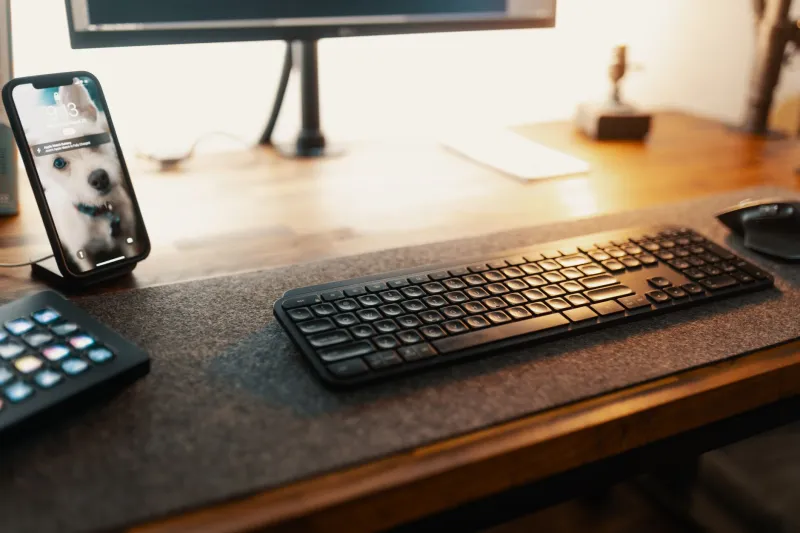
Here's a scenario that's becoming more common than you'd think: you're at a coffee shop, a student union, or an airport gate, and instead of hauling out a 14-inch laptop, you prop up your phone, snap on a keyboard, and just... work. No bag strain. No hunting for an outlet. No waiting for Windows to finish an update.
The idea that your smartphone can double as a legitimate productivity machine isn't new, but the accessories that make it actually work have gotten seriously good. Whether you're a remote worker trying to travel lighter, a student who wants to take notes without lugging a MacBook, or just someone who's curious how far a phone can be pushed, this guide is for you.
Let's get into the gear that's worth your money.
The Keyboard: Your Most Important Investment
Logitech Keys-to-Go 2 (~$80)
If portability is your top priority, the Logitech Keys-to-Go 2 is hard to beat. It's about as thin as a few credit cards stacked together, folds flat into a bag without a second thought, and connects via Bluetooth to basically any device you own — including your iPhone or Android phone. The typing experience isn't going to replace a full mechanical keyboard, but for drafting emails, writing reports, or taking notes in class, it gets the job done surprisingly well.
It also supports multi-device pairing, so you can bounce between your phone and tablet without re-pairing every time. That's a small thing that makes a big difference in daily use.
Keychron K3 Pro (~$90)
For those who refuse to compromise on the actual typing feel, the Keychron K3 Pro is a compact mechanical keyboard that connects wirelessly via Bluetooth or USB-C. Yes, it's heavier than the Keys-to-Go. Yes, it takes up more bag space. But if you're someone who types for hours and needs that tactile feedback, this is the move. The hot-swappable switches mean you can customize the feel without buying a whole new keyboard, and the battery life is solid enough for a full workday.
Paired with a phone running Samsung DeX or a recent Pixel with desktop mode, this thing turns your pocket computer into something that genuinely rivals a budget laptop setup.
The Stand: Seriously, Don't Skip This
A keyboard without a stand is like a desk without a chair. Your phone needs to be at eye level — or close to it — for this whole setup to be comfortable for more than 20 minutes.
Lamicall Adjustable Phone Stand (~$15)
This is the unglamorous workhorse of any mobile desk setup. The Lamicall stand is cheap, sturdy, and adjustable, holding your phone at multiple viewing angles without wobbling. It folds flat for travel and works with any phone, case or no case. There's no reason not to own one of these.
Moft Snap Float Stand (~$50)
If you want something more premium — and more portable — the Moft Snap Float Stand is worth the upgrade. It attaches magnetically to MagSafe-compatible iPhones (or any phone with a MagSafe adapter) and folds into a stand that props your device at a comfortable working angle. It's sleek, minimal, and the kind of accessory that makes you feel like you've got your life together. Works great on airplane tray tables, too.
The Trackpad: Optional, But Kind of a Game-Changer
Once you've got a keyboard and stand set up, reaching up to tap your phone screen every few seconds gets old fast. A Bluetooth trackpad solves that problem and makes the whole experience feel much more like using an actual computer.
Apple Magic Trackpad (~$129, for iPhone users)
Expensive? Yes. Worth it if you're serious about iPhone-based productivity? Also yes. The Magic Trackpad pairs seamlessly with iOS and supports the full range of gesture controls you'd use on a MacBook. Scrolling, swiping between apps, right-clicking — it all works exactly as you'd expect. The battery lasts for weeks, and the aluminum build feels premium in a way that matches the aesthetic of a polished mobile setup.
Logitech Pebble 2 M350S (~$40)
For Android users — or iPhone users who don't want to spend $129 on a trackpad — the Logitech Pebble 2 is a compact, wireless mouse that punches above its price point. It's not technically a trackpad, but the precision and Bluetooth reliability make it a practical alternative. It's also small enough to toss in a jacket pocket, which counts for a lot.
Bonus Gear: The Accessories That Round Out the Setup
USB-C Hub (~$30–$60)
A compact USB-C hub gives your phone access to HDMI output, extra USB ports, and SD card slots — turning it into a genuine desktop replacement when you're near a monitor. Anker and Satechi both make reliable options in this price range that won't let you down.
Portable Monitor (~$150–$250)
Okay, this one pushes the "pocket" definition a bit. But if you're working from a hotel room or a temporary workspace regularly, a portable USB-C monitor like the Arzopa Z1FC gives you a full second screen powered entirely by your phone. It's a legitimately wild setup when it comes together.
Building Your Setup: What to Actually Buy
You don't need to buy everything on this list at once. Here's a quick starting point based on your budget:
- Under $100: Logitech Keys-to-Go 2 + Lamicall stand. This combo alone will change how you think about mobile work.
- $100–$200: Add the Keychron K3 Pro for better typing, or swap in the Moft stand for portability. Throw in a Logitech Pebble 2 mouse.
- $200+: Go all-in with the Magic Trackpad, a USB-C hub, and consider a portable monitor for maximum setup power.
The Bottom Line
The assumption that you need a laptop to do real work is increasingly outdated. Modern smartphones — especially flagship Android devices and recent iPhones — have the processing power, the software, and the connectivity to handle most productivity tasks. The missing piece has always been the physical interface, and that's exactly what these accessories solve.
Is it going to replace a dedicated laptop for video editing or software development? No. But for writing, communication, spreadsheets, and remote work on the go? Your phone, with the right gear around it, is more capable than most people give it credit for.
Start small, see what works for your workflow, and don't be surprised when your laptop starts gathering dust.