Forget Screen Size: The Real Reason Your Next Tablet Needs a Great Stylus
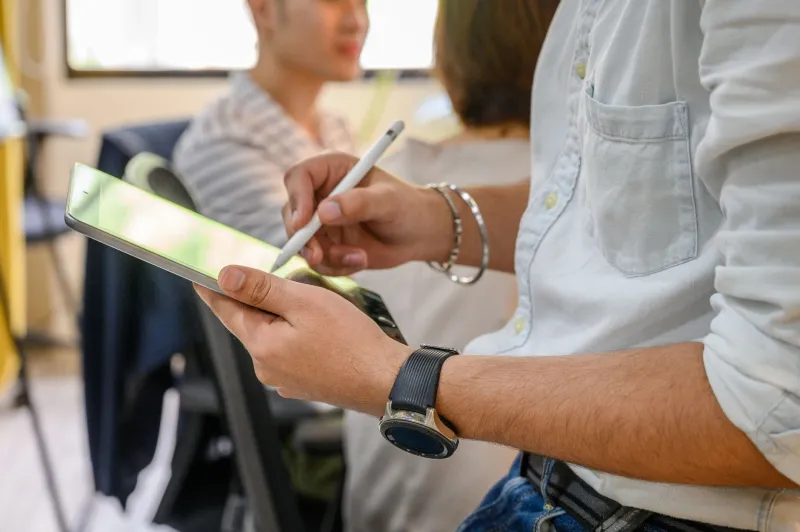
Every tablet review you've ever read leads with the same thing: display size, resolution, maybe refresh rate. And sure, those specs matter. But if you're someone who actually picks up a stylus to get work done — whether you're sketching UI mockups, journaling between meetings, or annotating PDFs on a flight to Chicago — the display is almost secondary. What's really going to make or break your experience is the pen tech underneath it.
The stylus is having a genuine moment right now, and it's not just an Apple thing anymore. Samsung, Microsoft, Lenovo, and a handful of smaller players are all pushing stylus-equipped devices harder than they have in years. The specs are getting serious, and the differences between implementations are wide enough that picking the wrong device for your workflow can leave you genuinely frustrated — even if the screen looks gorgeous.
So let's actually dig into what matters and why.
Pressure Sensitivity: More Levels Doesn't Always Mean Better
You'll see pressure sensitivity advertised in levels — 4,096 is common, and some high-end styluses claim 8,192. The idea is straightforward: the harder you press, the thicker or darker the line. More levels means finer gradations between light and heavy strokes.
In practice, the jump from 2,048 to 4,096 levels is genuinely noticeable for digital artists who rely on line weight variation. The jump from 4,096 to 8,192? Honestly, most people can't feel it in everyday use. What matters more is how the device interprets pressure across those levels. Some implementations front-load sensitivity — light pressure barely registers, and the line jumps thick quickly. Others distribute it more linearly, which feels more natural for handwriting and note-taking.
If you're primarily a note-taker or someone who annotates documents, you can get away with a stylus in the 4,096-level range without losing sleep over it. If you're doing detailed illustration work, that pressure curve becomes a much bigger deal, and you'll want to actually try before you buy rather than just reading the spec sheet.
Latency Is the Spec Nobody Talks About Enough
Here's the one that really separates good stylus implementations from great ones: latency. This is the delay between when your pen touches the screen and when the ink appears. Measured in milliseconds, the difference between 9ms and 26ms sounds tiny — until you're mid-sentence and the letters are trailing your hand like you're writing through syrup.
Apple's Pencil Pro, paired with a current iPad Pro, is widely considered the gold standard here, with latency that's essentially invisible in normal use. Samsung's S Pen on the Galaxy Tab S9 Ultra is genuinely close, and for most users the gap is imperceptible. Where things start to fall apart is in mid-range Android tablets that support third-party styluses — the Bluetooth handshake overhead and less optimized drivers can introduce lag that actively gets in the way of thinking.
Microsoft's Surface Pro line with the Slim Pen 2 has made significant strides, and the haptic feedback that simulates paper texture is a legitimately clever touch that no one else has matched. It doesn't eliminate latency, but it makes the experience feel more grounded, which is a different kind of solution to the same problem.
Palm Rejection: The Unsung Hero of Stylus Usability
If latency is underrated, palm rejection is practically ignored in mainstream coverage — and it's arguably the most important factor for anyone who rests their hand on the screen while writing. Bad palm rejection turns note-taking into a frustrating game of keeping your wrist hovering in the air like you're afraid of the display.
Modern palm rejection works through a combination of hardware and software: the stylus transmits a signal that tells the device to ignore touch inputs near the active pen tip. When it works well, you can write naturally with your full hand resting on the glass. When it doesn't, you get phantom marks, accidental scrolling, and a general sense that the device is fighting you.
Samsung's implementation on the Tab S series is among the most reliable on the Android side, largely because the S Pen is a first-party accessory with tight integration. Third-party USI (Universal Stylus Initiative) styluses, which are increasingly common on Chromebooks and some Android tablets, have improved a lot in the last two years — but the experience can still vary significantly depending on the specific device and driver version.
On Windows, the Surface line handles palm rejection well, but some competing 2-in-1s running generic Wacom EMR or AES implementations can be inconsistent, especially when you switch between apps or wake the device from sleep.
How Platform Choice Shapes Your Stylus Experience
Here's something worth saying plainly: the best stylus hardware in the world is limited by the software running on top of it. This is where platform choice actually matters.
iPadOS has the deepest ecosystem of stylus-optimized apps — Procreate, GoodNotes, Notability, and dozens of others are built specifically around Apple Pencil input and take full advantage of pressure and tilt data. If creative work or detailed note-taking is your primary use case, this ecosystem advantage is real and hard to overstate.
Windows offers the broadest software compatibility, and if you need to annotate Microsoft Office documents, work in Adobe Fresco, or use a stylus within a full desktop environment, the Surface Pro or a comparable 2-in-1 makes a compelling case. The trade-off is that not every Windows app is stylus-aware, so the experience can be uneven depending on what you're doing.
Android sits in an interesting middle ground. Samsung Notes is genuinely excellent, and the Galaxy Tab S9 series is a serious productivity tool. But the app ecosystem for stylus-specific workflows is thinner than iOS, and you'll occasionally run into apps that treat the S Pen like a finger with a very small tip.
What Size Actually Gets Right — and Wrong
Okay, screen size isn't completely irrelevant. A larger display gives your hand more room to move naturally, which reduces cramping during long writing sessions. The 12.9-inch iPad Pro and the 14.6-inch Galaxy Tab S9 Ultra both benefit from the extra real estate when you're doing anything that resembles actual handwriting.
But the assumption that bigger automatically means better for stylus work doesn't hold up. An 11-inch device with excellent palm rejection and sub-10ms latency will feel dramatically better to write on than a 13-inch device with sluggish pen response. The 2-in-1 laptop crowd has learned this the hard way — plenty of large-format Windows tablets have disappointing stylus implementations despite their generous displays.
The Bottom Line for Portable Productivity
If you're shopping for a tablet or 2-in-1 and a stylus is part of your plan, flip the script on how you evaluate it. Start with latency and palm rejection, then look at pressure sensitivity, and consider screen size last. Ask whether the stylus is a first-party accessory with tight hardware integration, or a third-party add-on that relies on a more generic protocol.
The stylus renaissance is real, and the technology has gotten good enough that the right device can genuinely replace a paper notebook for a lot of people. But "good enough" varies a lot depending on what you're actually doing with it — and the spec that matters most for a digital illustrator is not the same one that matters most for someone who just wants to sign documents without printing them.
Do yourself a favor: before you spend $700 or more on a tablet, find one in a Best Buy or Microsoft Store and spend five minutes writing on it. Your hand will tell you more than any spec sheet will.